
Quick Start: Your First 5 Minutes
Learn the few controls you use on every page: the time and filter selector, token search, the help panel and the dark or light theme.
 Written by taika · Creator of Token Radar
 Find Your Way Around
The side navigation on the left leads to the main pages: Dashboard, Screener, News, Social, Blockchains, Sectors and Tokens. On small screens, open it with the menu icon at the top left.
The header holds the tools you need everywhere: token search, the help panel, the theme switch and your account.
Choose a Time Range
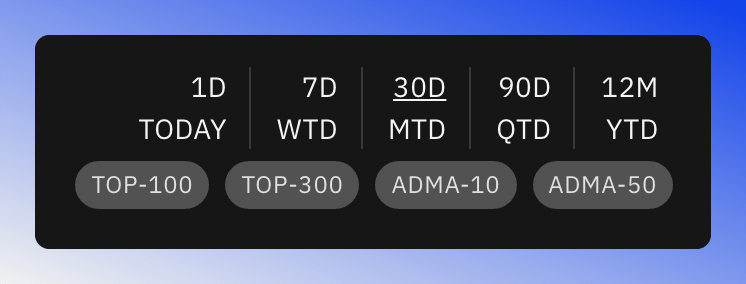
The Dashboard, Screener, Sectors, Blockchains, News and Social pages have a time selector at the top right. It sets the period for every chart and table on the page.
- 1D, 7D, 30D, 90D and 12M: the last day, 7 days, 30 days, 90 days or 12 months.
- TODAY, WTD, MTD, QTD and YTD: from the start of the current day, week, month, quarter or year until now.
30D is the default and is available on every plan. The other time ranges need Premium, see Free vs Premium.
Your choice is kept in the page address. It stays selected when you move to another page from the side navigation, and you can bookmark or share the link. On screens narrower than a laptop, tap Show Filter to open the selector.
Filter the Tokens
Below the time selector, the filter chips limit which tokens the page includes:
- TOP-100 and TOP-300: only tokens in the top 100 or top 300 by market cap.
- ADMA-10 and ADMA-50: only tokens trading above their 10-day or 50-day moving average.
You can combine several chips. News and Social have their own chips for their feeds. When a filter is set, a reset icon appears in the header: it clears the filters and keeps the time range. For the terms, see the Vocabulary.
Search for a Token
Click the magnifier in the header, or press Cmd+K (Mac) or Ctrl+K (Windows and Linux), and type at least two letters of a token's name or symbol. Pick a result to open the token's page. Find Any Token explains what you find there.
Get Help on Any Page
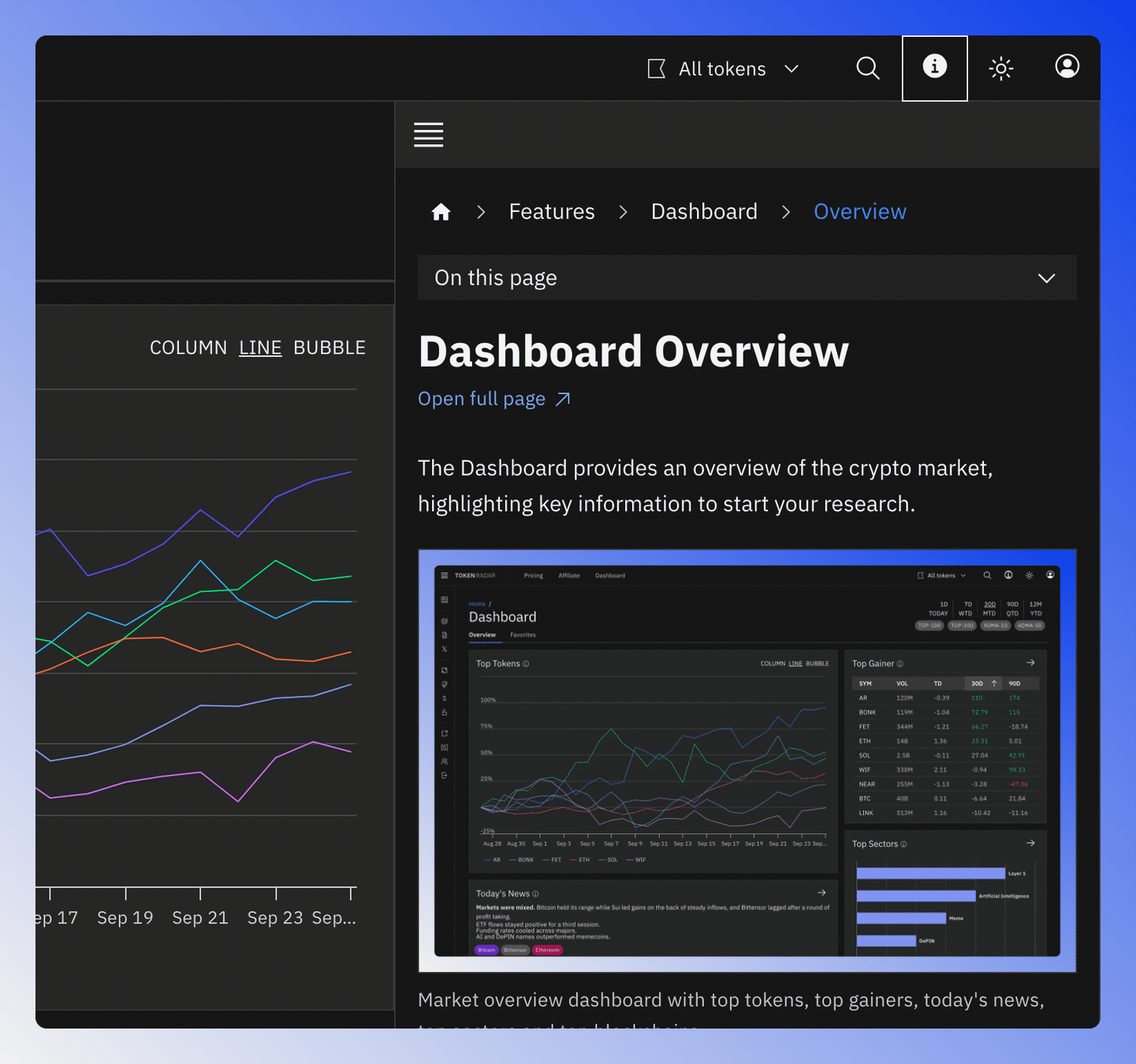
The ⓘ icon in the header opens the help panel next to the page you are on, with the article for that page. You can keep working while it is open.
- The menu icon at the top of the panel shows all help topics.
- On this page jumps to a section of the article.
- Open full page opens the article in a new tab.
To browse or search all articles, open the Docs from the header or Documentation in the side navigation.
Switch Between Dark and Light
The moon icon in the header switches to dark mode, the sun icon back to light mode. Token Radar remembers your choice in this browser.